Alert List
The Alert List shows the Ignition alarms that match its filter as a compact list, one row per alarm, with an ACK button on each alarm that can be acknowledged. It is found in the Embedding - OpenBridge section of the Perspective Component Palette as Alert List.
It reads the alarms from the gateway itself; no binding is needed. The list is the same one the Top Bar shows in its Alert Menu, with the same filter properties, so use it where the alarms should be visible without opening a menu: in a side dock, on a system page that only shows the alarms of that system, or in a popup. For a full-page alarm table with history, shelving and search, use the Alert List Page.
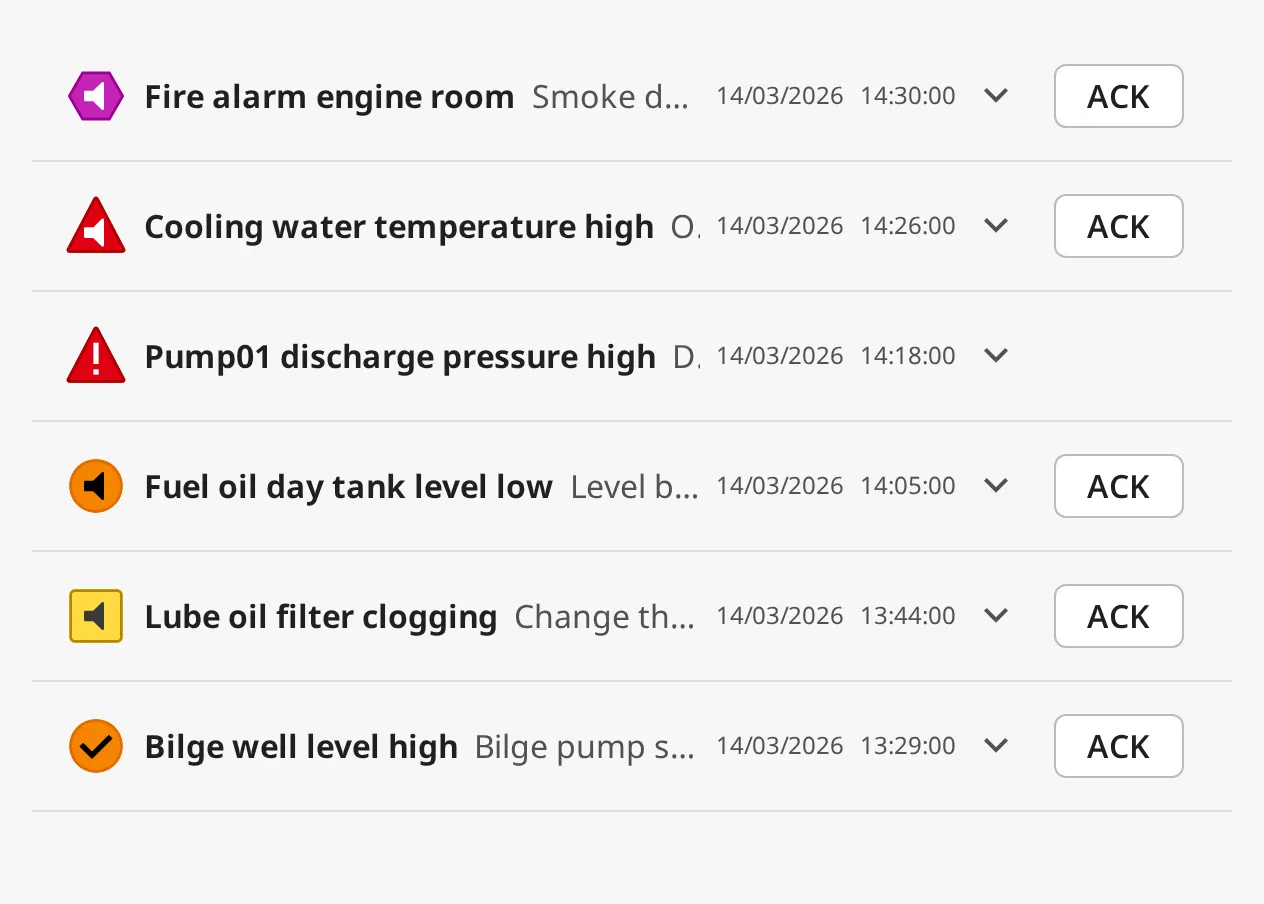
Each row shows, from left to right:
- Alert icon — the priority and state of the alarm. See Alert Icons.
- Title and description — two fields of the alarm, by default its label and its notes. See Text and Time.
- Activation time — when the alarm became active.
- Expand button (˅) — see Expanding a Row.
- ACK — acknowledges the alarm. See Acknowledging.
An Alert List dropped from the palette is 360 × 400 px. At that width it shows only the icon, the description and the ACK button (see Width):
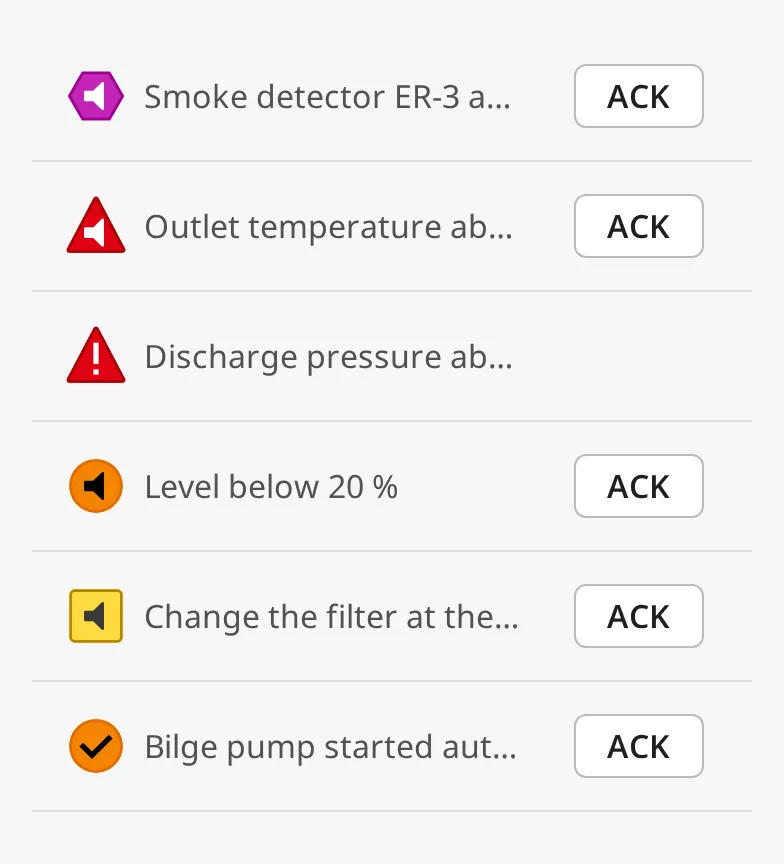
Note: The screenshots on this page were made with example alarms, not in a gateway session.
Which Alarms Are Shown
Section titled “Which Alarms Are Shown”The list shows the alarms of the gateway’s alarm status: the alarms that are active or not yet acknowledged, from every alarm provider the gateway knows, including remote tag providers. Alarms of the gateway’s own tag providers show within a fraction of a second of changing. Alarms from remote tag providers (an I/O gateway behind the Gateway Network) are checked once a second.
The filter property selects which of them are shown. It works exactly like the
Top Bar’s filter, described in
Which Alarms Are Shown:
filter.states— the alarm states to include. By default active alarms and cleared, unacknowledged alarms; cleared and acknowledged alarms are not included.filter.priorities— the priorities to include. Diagnostic is excluded by default.filter.conditions—source,displayPathandprovider. Separate several values with commas;*is a wildcard. For examplesource=*Pump01*shows only the alarms of tags underPump01.
Shelved alarms are never shown.
The newest alarm is at the top. Alarms that became active at the same moment
are ordered by priority, highest first. maxAlerts (default 50) limits how
many alarms the gateway sends to the list; the newest are kept. Sending
thousands of alarms makes the browser slow.
Empty List
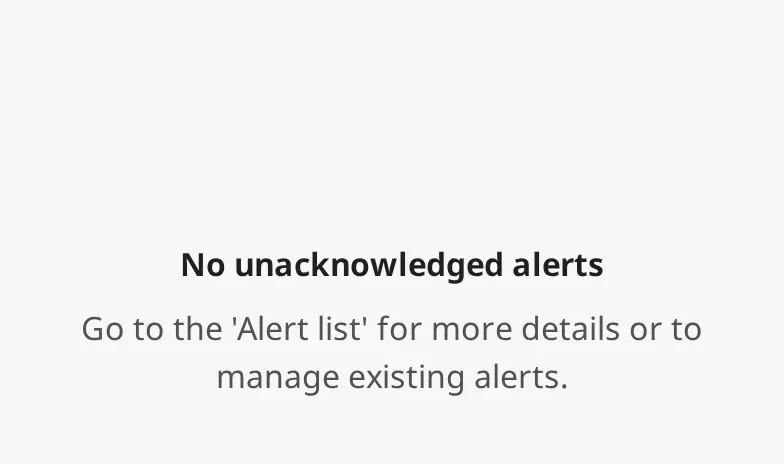
Section titled “Empty List”When no alarm matches the filter, the list shows emptyTitle and
emptyDescription:
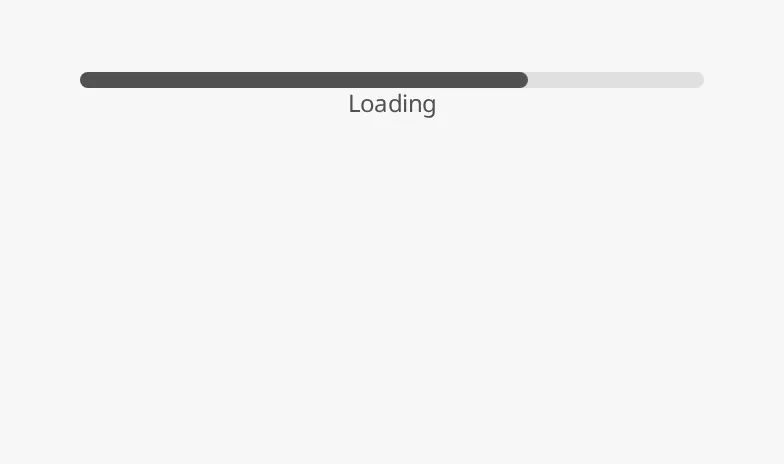
Until the gateway has sent its first alarm list, the list shows a moving
Loading bar instead, so an empty list is never mistaken for “no alarms”.
This lasts a moment after the view opens. If a filter property has a binding,
the gateway waits for the binding’s first value before it sends the list, at
most 5 seconds.
Properties
Section titled “Properties”| Name | Description | Property Type |
|---|---|---|
| filter | Gateway-side alarm filter. See the sub-properties below. | object |
| maxAlerts | Most alarms the gateway sends to the list. The newest are kept. Default 50, at most 1000. |
value |
| emptyTitle | Title shown when no alarm matches. Default No unacknowledged alerts. |
value |
| emptyDescription | Text shown under emptyTitle. Default Go to the 'Alert list' for more details or to manage existing alerts. |
value |
filter sub-properties:
| Name | Description | Property Type |
|---|---|---|
| states.activeUnacked | Include active, unacknowledged alarms. Default true. |
value |
| states.activeAcked | Include active, acknowledged alarms. Default true. |
value |
| states.clearUnacked | Include cleared, unacknowledged alarms. Default true. |
value |
| states.clearAcked | Include cleared, acknowledged alarms. Default false. |
value |
| priorities.diagnostic | Include diagnostic alarms. Default false. |
value |
| priorities.low | Include low alarms. Default true. |
value |
| priorities.medium | Include medium alarms. Default true. |
value |
| priorities.high | Include high alarms. Default true. |
value |
| priorities.critical | Include critical alarms. Default true. |
value |
| conditions.source | Alarm source path filter. Comma-separated, * wildcard. Default *. |
value |
| conditions.displayPath | Display path filter (falls back to source path). Comma-separated, * wildcard. Default *. |
value |
| conditions.provider | Alarm provider filter. Comma-separated. Empty means all providers. | value |
Alert Icons
Section titled “Alert Icons”The icon shows the alarm’s priority as an OpenBridge alert level, and its state:
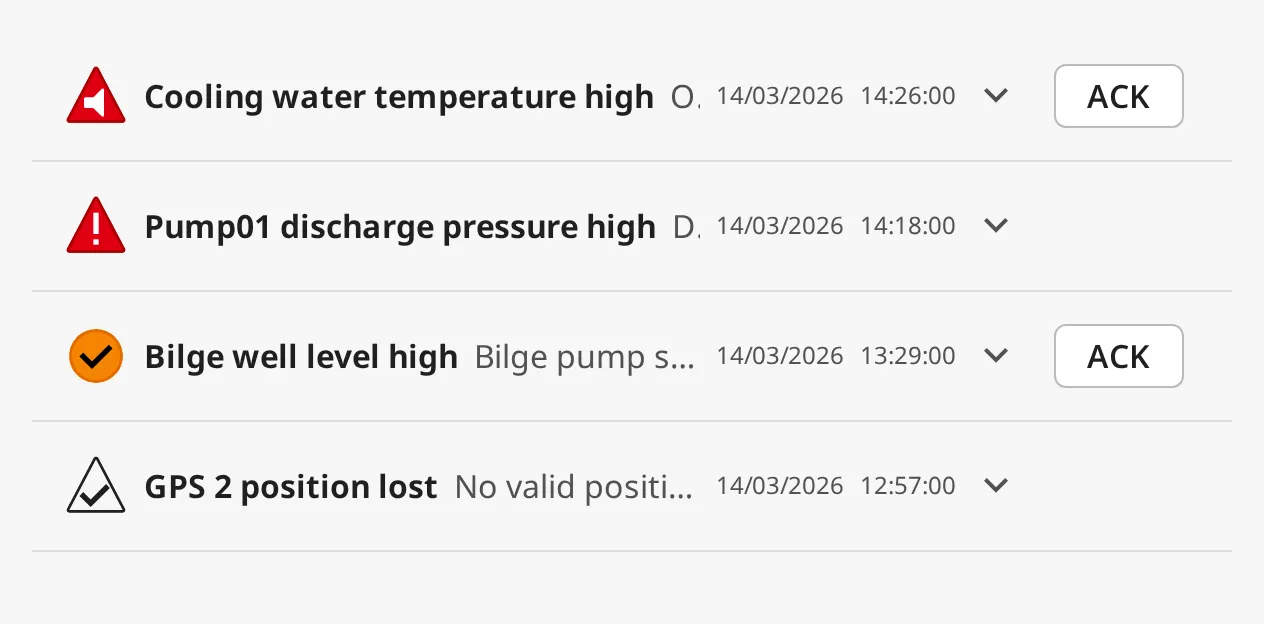
- Active and unacknowledged — the icon flashes (the first row, a high alarm).
- Active and acknowledged — the icon is steady, with an exclamation mark (the second row).
- Cleared (rectified) — the icon shows a check mark (third row, still unacknowledged) or is drawn as an outline (fourth row, acknowledged).
The Ignition priorities map to the OpenBridge levels: Critical → critical (purple), High → high (red), Medium → medium (orange), Low → low (yellow), Diagnostic → diagnostic.
Text and Time
Section titled “Text and Time”titleSource and descriptionSource choose which field of the alarm is shown
as the title and the description. Both offer the same four fields:
titleSource |
Image |
|---|---|
label |
 |
name |
 |
notes |
 |
displayPath |
 |
descriptionSource |
Image |
|---|---|
label |
 |
name |
 |
notes |
|
displayPath |
 |
label, name and notes are the alarm’s settings of the same name.
displayPath is the alarm’s display path, or its source path when it has none.
The defaults are label for the title and notes for the description.
dateFormat sets how the activation time is written. The date and the time are
shown separately; a format without a date shows the time only.
| Value | Image |
|---|---|
DD/MM/YYYY HH:mm:ss |
 |
MM/DD/YYYY hh:mm:ss a |
 |
HH:mm |
 |
hh:mm a |
 |
showTimeInUtc writes the times in UTC instead of the workstation’s time zone.
Properties
Section titled “Properties”| Name | Description | Property Type |
|---|---|---|
| titleSource | Alarm field shown as the title: label, name, notes or displayPath. Default label. |
value |
| descriptionSource | Alarm field shown as the description: label, name, notes or displayPath. Default notes. |
value |
| dateFormat | Format of the activation time: DD/MM/YYYY HH:mm:ss, MM/DD/YYYY hh:mm:ss a, HH:mm or hh:mm a. Default DD/MM/YYYY HH:mm:ss. |
value |
| showTimeInUtc | Show times in UTC instead of the local time zone. Default false. |
value |
The rows adapt to the width of the component. Below about 500 px the time is left out, and below about 400 px the title is left out too, so only the description remains:
| Width | Image |
|---|---|
| 360 px |  |
| 440 px |  |
| 520 px |  |
Make the component at least 500 px wide when the operator should see the title
and the time. With descriptionSource set to label, a narrow list still shows
the alarm’s label.
Expanding a Row
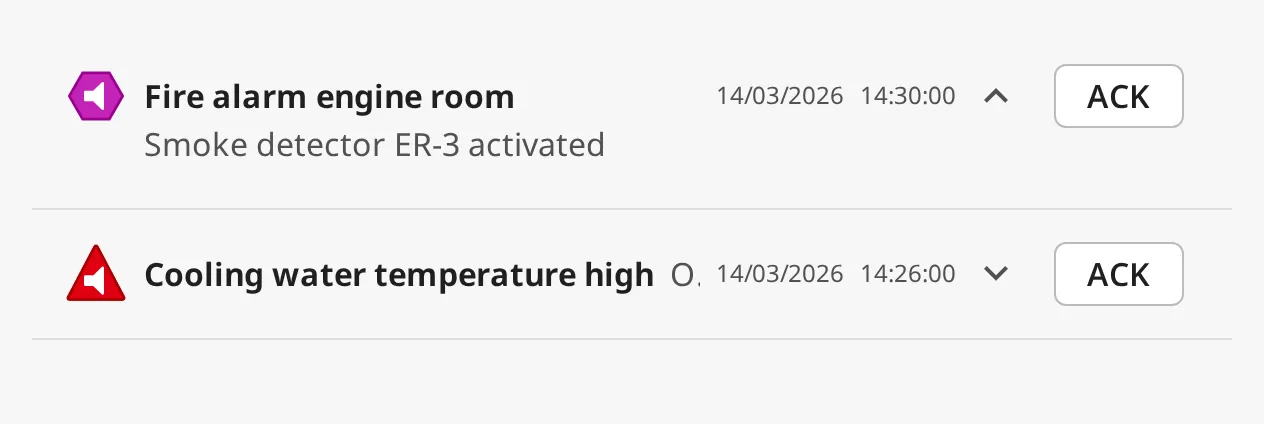
Section titled “Expanding a Row”Clicking a row expands it, so a long description gets a line of its own; the
expand button turns to ˄. Clicking it again collapses it. Each click also fires
the onItemClick event, for instance to open the
Alert Detail of that alarm.
Acknowledging
Section titled “Acknowledging”Clicking ACK acknowledges the alarm on the gateway, in the name of the user
signed in to the session, and fires the
onAcknowledgeClick event. The list does not ask for a
comment.
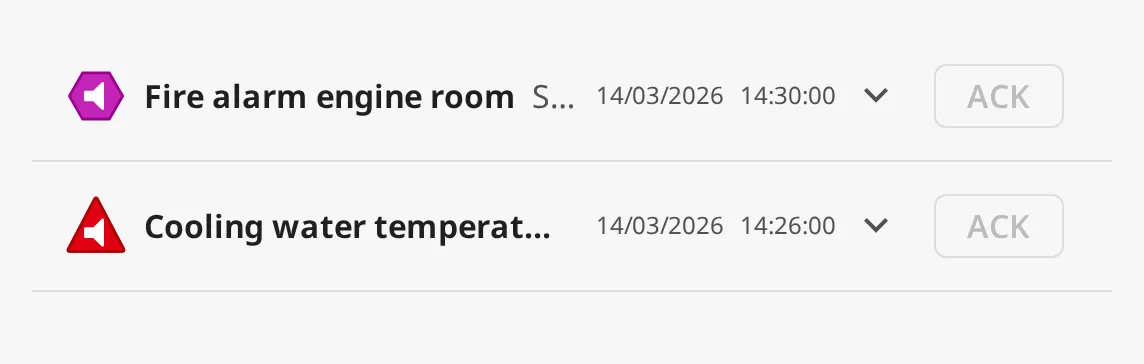
Which alarms get an ACK button, and whether it can be clicked, works as for the Top Bar (see Acknowledging):
- An alarm that is already acknowledged has no ACK button.
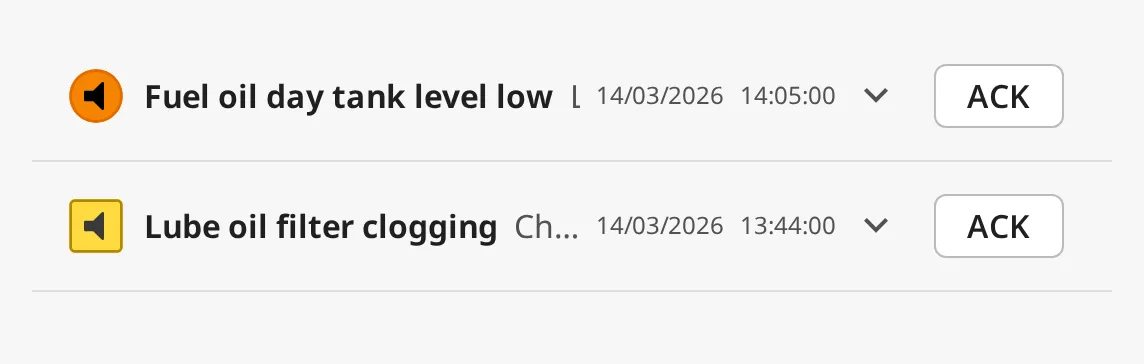
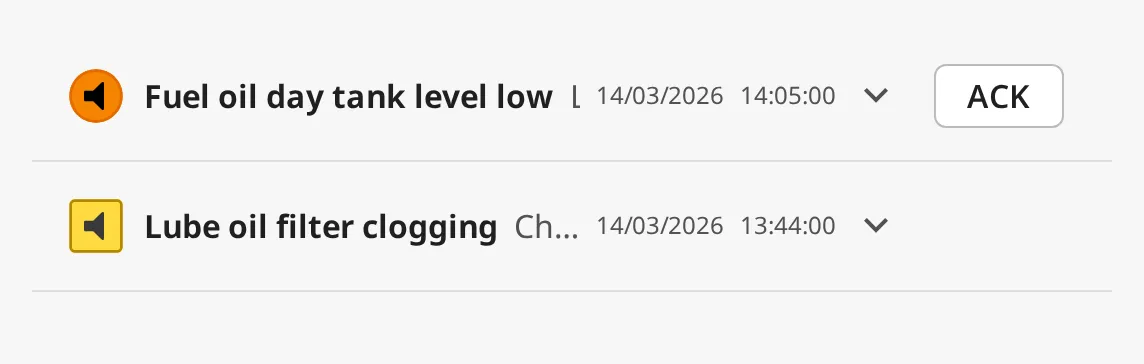
alertConventiondecides which unacknowledged alarms can be acknowledged at all. Withlevels(default) every one can. Withbam(Bridge Alert Management) low and diagnostic alarms are only informational and have no ACK button:
| Value | Image |
|---|---|
levels |
 |
bam |
 |
- With
canAcknowledgeset tofalsethe ACK buttons are shown disabled, and the gateway refuses acknowledge requests from this component. Bind it to a role check to let only some users acknowledge.
Properties
Section titled “Properties”| Name | Description | Property Type |
|---|---|---|
| canAcknowledge | Whether the operator may acknowledge from this list. When false the ACK buttons are disabled and the gateway rejects acknowledging. Default true. |
value |
| alertConvention | Which alarms can be acknowledged: levels or bam. Default levels. |
value |
Palettes
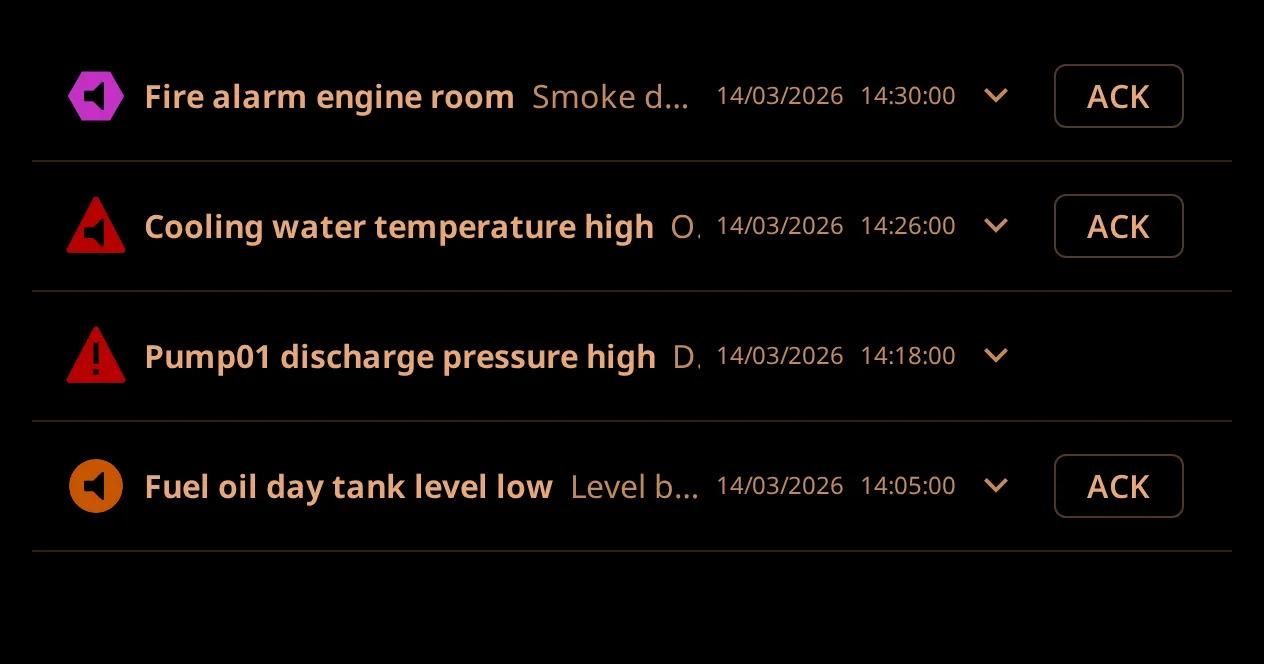
Section titled “Palettes”The list follows the OpenBridge palette of the session, set for instance with the Top Bar’s Brilliance Menu:
Properties
Section titled “Properties”| Name | Description | Property Type |
|---|---|---|
| style | Standard Perspective style object. | object |
Component Events
Section titled “Component Events”| Event | Description | Event Object |
|---|---|---|
| onItemClick | Fired when the operator clicks a row (which also expands or collapses it). | See below |
| onAcknowledgeClick | Fired when the operator clicks ACK, at the same time as the alarm is acknowledged. | See below |
Both events have the same event object, for the alarm of the row:
| Name | Description | Property Type |
|---|---|---|
| alarmId | The alarm’s event id (a UUID), as text. | value |
| alarmName | The alarm name. | value |
Examples
Section titled “Examples”Example 1 — Alarms of One System on Its Page
Section titled “Example 1 — Alarms of One System on Its Page”On the page of the ballast system, show only the alarms of the tags under
[default]Ballast:
- Drop an Alert List on the view and make it 600 × 300 px.
- Set
filter.conditions.sourceto*Ballast*. - Set
emptyTitletoNo ballast alarmsandemptyDescriptionto an empty string.
Example 2 — Open the Details of an Alarm in a Popup
Section titled “Example 2 — Open the Details of an Alarm in a Popup”- Create a view
Alarms/Detailwith a view parametereventId, and an Alert Detail whoseeventIdproperty is bound toview.params.eventId. - On the Alert List, configure the
onItemClickevent with a script action:
def runAction(self, event): system.perspective.openPopup( 'alarmDetail', 'Alarms/Detail', params={'eventId': event.alarmId}, title='Alarm', position={'width': 400, 'height': 700}, )Example 3 — Only Supervisors Acknowledge
Section titled “Example 3 — Only Supervisors Acknowledge”Bind canAcknowledge to an expression that checks the user’s roles, for
example:
isAuthorized(false, "Authenticated/Roles/Supervisor")Other users see the alarms with a disabled ACK button.
Found an error or something unclear?
Tell us what is wrong, confusing or missing on this page.
Built on the OpenBridge Design System