Thruster
The Thruster shows the thrust of a thruster or propeller that does not turn, as a bar that fills from a zero line. It can be drawn upright for a propeller, or across for a tunnel thruster. It is found in the Maritime - OpenBridge section of the Perspective Component Palette as Thruster.
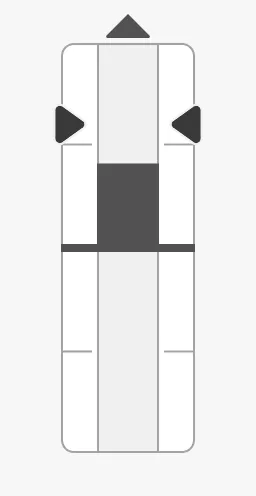
The parts of the instrument:
- Bar — filled from the zero line in the middle, upwards for positive thrust. See Thrust.
- Scale — the tickmarks on either side of the bar.
- Arrow — the direction of positive thrust. See Propellers.
- Setpoint — the ordered thrust, as markers beside the bar. See Setpoint.
The Thruster is one of the maritime instruments. State, priority, how a setpoint works and advice zones are shared by all of them and are described in Maritime Instruments — Common Features. This page covers what is specific to the Thruster. For a small symbol of a tunnel thruster, see the Tunnel Thruster.
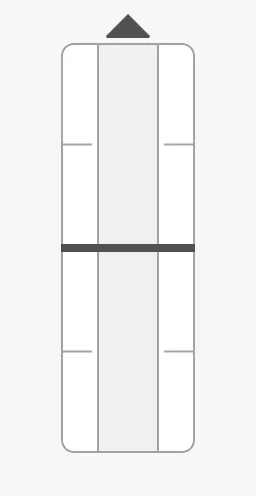
A Thruster dropped from the palette shows no thrust:
Thrust
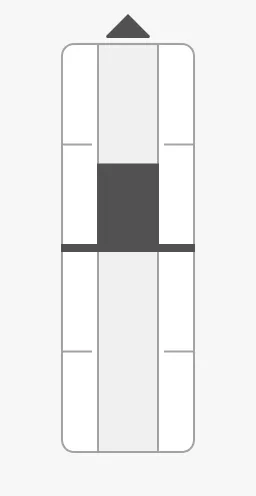
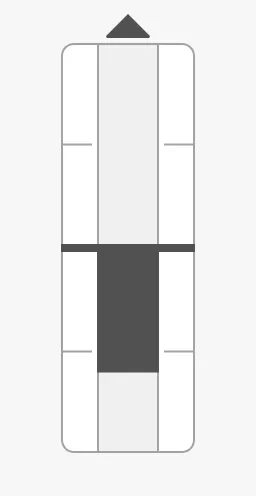
Section titled “Thrust”Bind thrust to the thrust in percent, from -100 to 100.
40 |
-60 |
|---|---|
 |
 |
Properties
Section titled “Properties”| Name | Description | Property Type |
|---|---|---|
| thrust | Thrust in percent, -100 to 100. Default 0. |
value |
Four properties change the shape of the bar. The images all show a thrust of 40 %:
| Property | Effect | Image |
|---|---|---|
| None (default) | Scale on both sides; thrust in both directions. | |
singleSided |
Scale and setpoint on the right side only. | 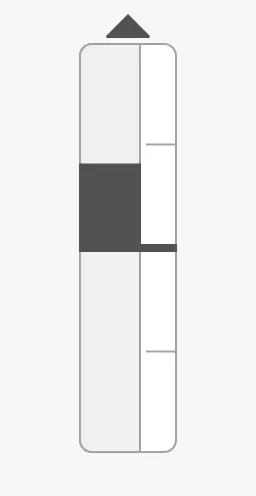 |
singleDirection |
Thrust in one direction: the zero line is at the bottom. | 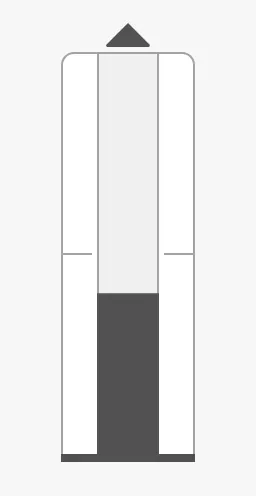 |
singleSided + singleDirectionHalfSize |
Single-sided, without the lower half. | 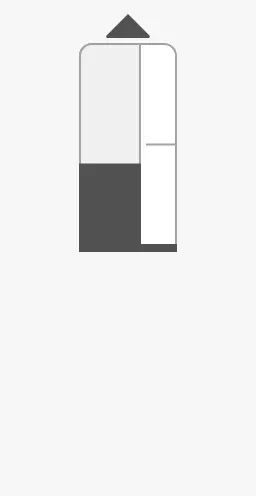 |
A single-sided thruster is needed for advice zones.
singleDirectionHalfSize is only offered when singleSided is true.
Tunnel
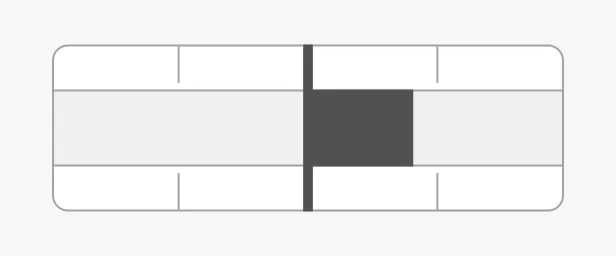
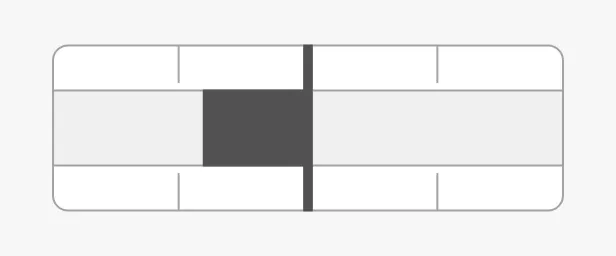
Section titled “Tunnel”Set tunnel to true for a tunnel thruster: the bar is drawn across, and
positive thrust fills it to the right (to starboard). Give the component a wide
box, about 5 : 2.
thrust = 40 |
thrust = -40 |
|---|---|
 |
 |
Properties
Section titled “Properties”| Name | Description | Property Type |
|---|---|---|
| singleSided | Scale and setpoint on one side only. Default false. |
value |
| singleDirection | Thrust in one direction, from a zero line at the bottom. Default false. |
value |
| singleDirectionHalfSize | Leave out the lower half of the bar. Only shown when singleSided is true. Default false. |
value |
| tunnel | Draw the bar across, for a tunnel thruster. Default false. |
value |
Propellers
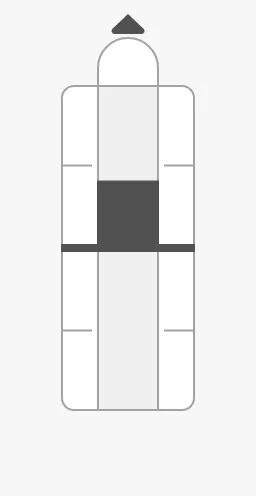
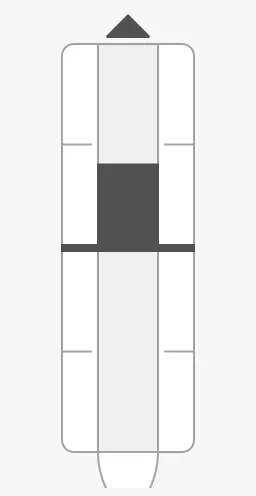
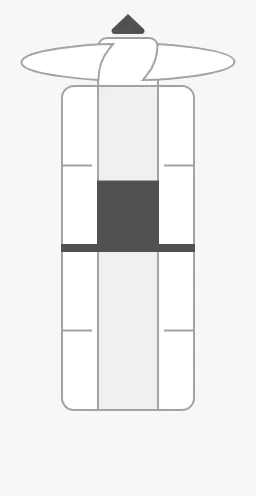
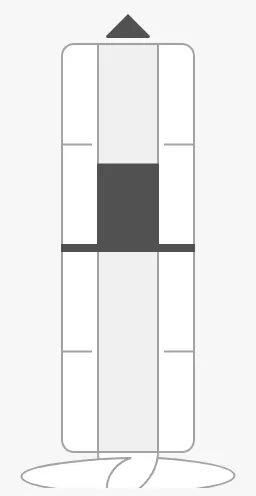
Section titled “Propellers”topPropeller and bottomPropeller draw a symbol of the propeller housing at
the ends of the bar. With none at the top, the end is an arrow.
| Value | topPropeller |
bottomPropeller |
|---|---|---|
none (default) |
|
|
cap |
 |
 |
single |
 |
 |
Properties
Section titled “Properties”| Name | Description | Property Type |
|---|---|---|
| topPropeller | none, cap or single. Default none. |
value |
| bottomPropeller | none, cap or single. Default none. |
value |
Setpoint
Section titled “Setpoint”Set hasSetpoint to true and bind setpoint to the ordered thrust in
percent. The setpoint works as described in Setpoint.
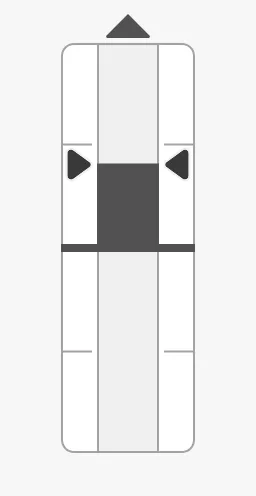
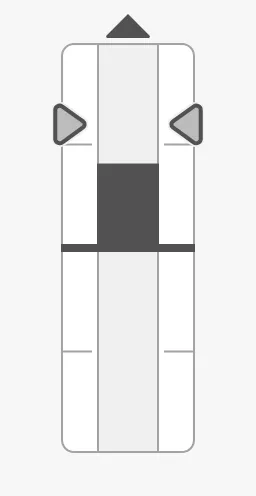
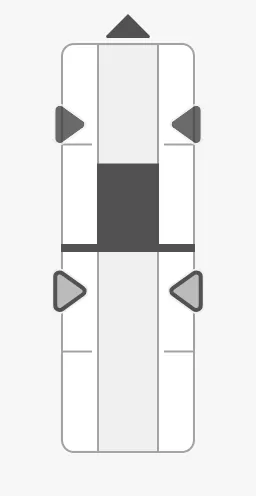
On a regular thruster the marker is drawn on both sides of the bar.
| Setpoint at 60 % | Reached | Touching | A new setpoint being chosen |
|---|---|---|---|
|
 |
 |
 |
Unlike most instruments, the Thruster does not decide by itself when the
setpoint is reached: autoAtSetpoint is false by default, and its deadband
is 0. Either bind atSetpoint, or set autoAtSetpoint to true and give
autoAtSetpointDeadband a value such as 1.
Properties
Section titled “Properties”| Name | Description | Property Type |
|---|---|---|
| hasSetpoint | Show the setpoint. Default false. |
value |
| setpoint | Ordered thrust in percent. Only shown when hasSetpoint is true. |
value |
| autoAtSetpoint | Let the instrument decide when the setpoint is reached. Default false. |
value |
| autoAtSetpointDeadband | Percent the thrust may differ from the setpoint and still count as reached. Default 0. |
value |
| atSetpoint | Whether the setpoint is reached. Used when autoAtSetpoint is false. Default false. |
value |
| touching | The operator is operating the thruster lever. Default false. |
value |
| hasNewSetpoint | Show a second marker for a setpoint that is being chosen. Default false. |
value |
| newSetpoint | The setpoint being chosen. Only shown when hasNewSetpoint is true. |
value |
| setpointAtZeroDeadband | How close to zero the setpoint must be to be drawn in its “zero” form. Default 0. |
value |
Advice Zones
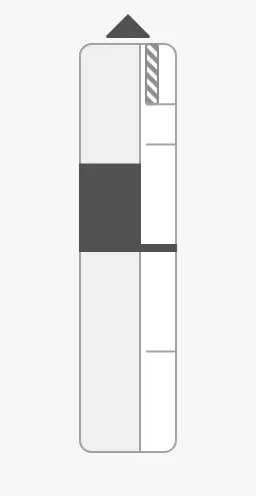
Section titled “Advice Zones”advices is a list of advice zones along the bar,
with min and max in percent of thrust. A zone is triggered when the thrust
or the setpoint is inside it; adviceTrigger narrows that to the thrust
(value) or the setpoint alone.
| A caution zone from 70 % to 100 % | Triggered by a setpoint at 80 % |
|---|---|
 |
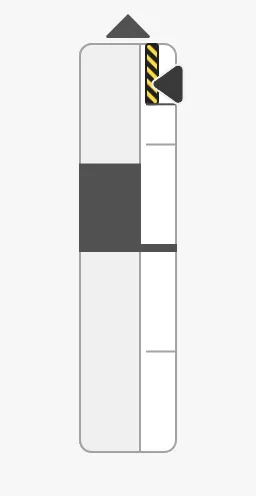 |
Note: Advice zones only work on a thruster with
singleSidedset totrue, soadvicesis only shown then. A non-emptyadvicesthat a binding writes to a double-sided thruster makes the component draw nothing at all.
Properties
Section titled “Properties”| Name | Description | Property Type |
|---|---|---|
| advices | Advice zones along the bar, with min and max in percent. Only shown when singleSided is true. Empty by default. |
array |
| adviceTrigger | Which reading triggers a zone: both (the thrust or the setpoint), value (the thrust) or setpoint. Default both. |
value |
| adviceEmphasis | Apply the design’s emphasis rules between go-to and no-go zones. Default false. |
value |
State and Priority
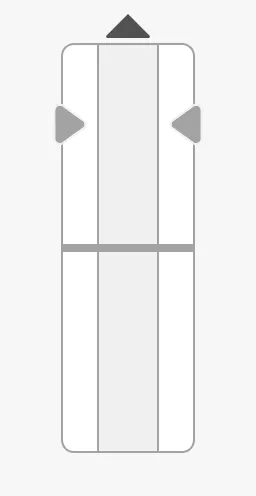
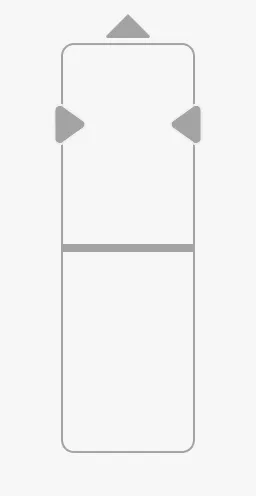
Section titled “State and Priority”state and priority work as described in State and
Priority.
active |
loading |
off |
enhanced |
|---|---|---|---|
|
 |
 |
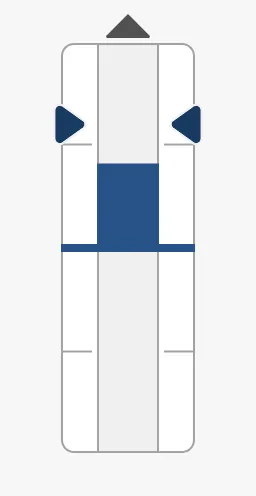 |
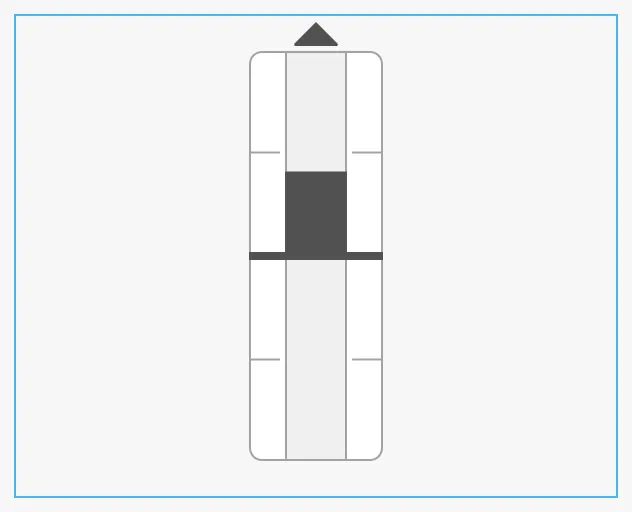
The upright Thruster is twice as tall as it is wide (a tunnel thruster 5 : 2). It fills the height or the width of the component’s box, whichever is reached first, and is centred in it. The blue frame is the component’s box:
Common Properties
Section titled “Common Properties”These work in the same way on every maritime instrument, and are described in Maritime Instruments — Common Features:
- State —
state. - Priority —
priority. - Style and Events —
style.
Component Events
Section titled “Component Events”The Thruster has no component events of its own.
Examples
Section titled “Examples”Example 1 — Bow Tunnel Thruster
Section titled “Example 1 — Bow Tunnel Thruster”- Drop a Thruster into the view and make it 250 px wide and 100 px tall.
- Set
tunneltotrue. - Bind
thrustto[default]Propulsion/BowThruster/Thrust. - Set
hasSetpointtotrueand bindsetpointto[default]Propulsion/BowThruster/ThrustOrder. - Set
autoAtSetpointtotrueandautoAtSetpointDeadbandto1.
Example 2 — Propeller with a Caution Zone
Section titled “Example 2 — Propeller with a Caution Zone”-
Drop a Thruster into the view and make it 120 px wide and 240 px tall.
-
Set
singleSidedtotrueandbottomPropellertosingle. -
Bind
thrustto[default]Propulsion/Prop1/Thrust. -
Set
advicesto:[{"category": "caution", "min": 85, "max": 100}]
Found an error or something unclear?
Tell us what is wrong, confusing or missing on this page.
Built on the OpenBridge Design System